Active Bookings
Current and upcoming bookings are listed in the Active Bookings view. From here you have a variety of options for viewing high-level details about your bookings.
Booking table
The main section of this view is the booking table. This table is completely configurable to make the view fit your needs.
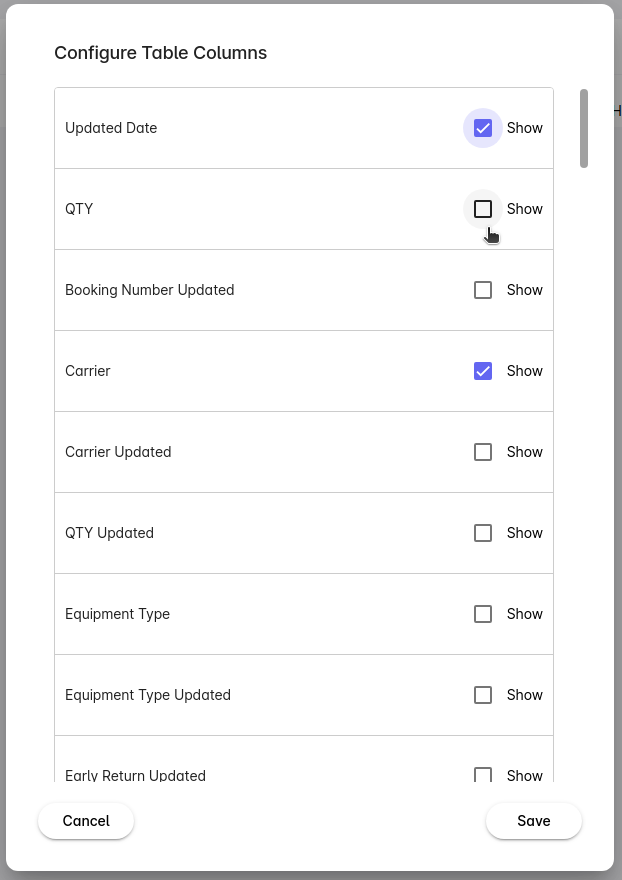
Configure Table
Select the Configure Table button

From here, the Configure Table Columns dialog allows you to select/deselect which data points you would like visible in your active bookings table. You can also drag each row in the dialog to set the order of the visible table columns.
Local Timezone
All timestamps the table correspond the origin terminal's timezone. If you are managing bookings in terminals across the country and need to see all of the times in a common tmezone, you can toggle the Local timezone switch. Now all timestamps will be adjusted to your current working timezone.

Export
Press the Export button to download a full listing of your active bookings. This report will include all available data columns in .xlsx format.

Booking Menu
Each booking record has a dropdown menu with a number of options.
Edit
Select Edit to edit the current booking details. This option is helpful to manually record or correct booking information in order to keep your whole operations team on the same page.

Close
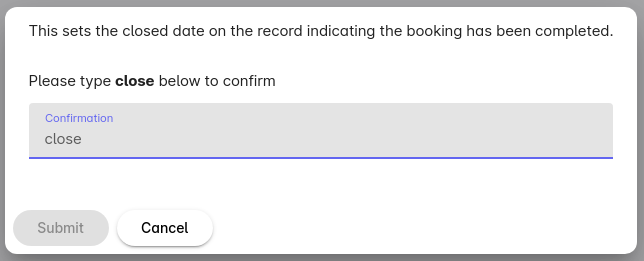
Select Close to close out the booking. Scenarios when this may be helpful are if you have already returned all of the containers for this booking or if the vessel has already departed and you no longer need to actively track the booking's due dates.

When selecting to close a booking you must make a second confirmation, as this operation will remove the booking for your view of Active Bookings.
History
Select History to see the chronological history of all updates to the booking. This view is like jumping in the time machine and seeing what information was gathered about the booking, where it came from and when it was received.

Cancel
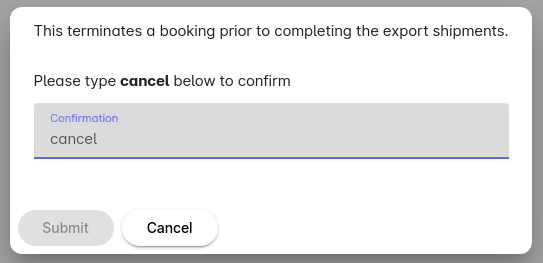
Select Cancel to cancel the booking. In this scenario, the booking has been cancelled with the ocean carrier and you will no longer need this booking record.

Similar to the Close operation, when selecting to cancel a booking you must make a second confirmation. This operation will remove the booking for your view of Active Bookings.